Graphics, specs & benchmarks
CPU and Vulkan 1.3 requirements, Steam Deck LCD vs Xenia Edge frame-time benchmarks, and a full breakdown of RECOMP SETTINGS and ng2.toml.
- CPU: SSE4.2 / AVX2
- GPU: Vulkan 1.3
- Scale: 1x–8x + 8x MSAA
- Deck draw: 10 W @ 60.0 FPS
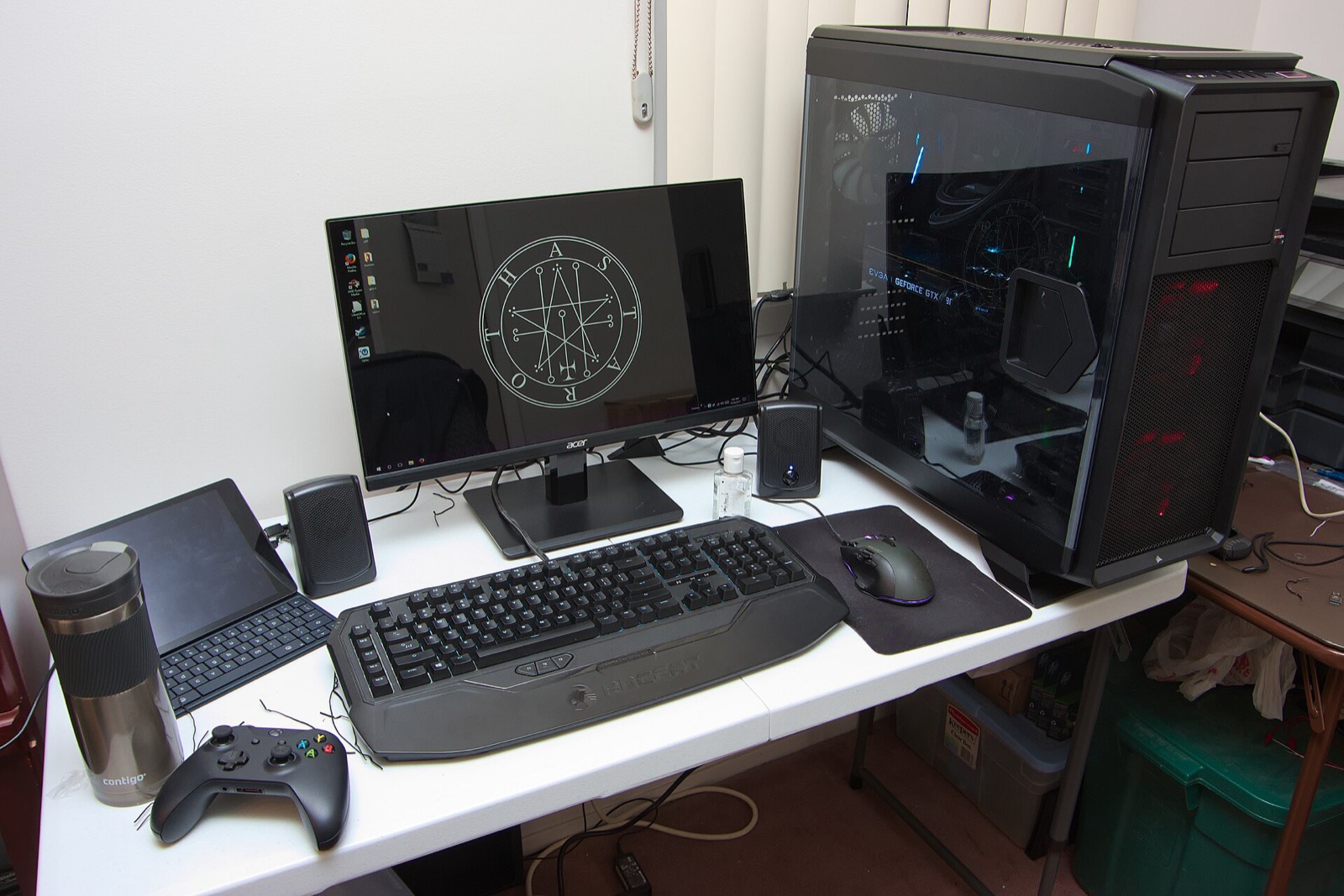
Minimum & recommended PC specifications
Hardware requirements from the gamboozino/ng2recomp documentation for Windows 10/11, Linux x86_64, and Steam Deck:
- Operating system
- Windows 10 or 11 (64-bit) or 64-bit Linux with
glibc 2.35+(SteamOS, Ubuntu 22.04+, Debian 12+, Fedora 36+) and Python 3. - Processor (CPU)
- Any 64-bit x86_64 processor with SSE4.2 (~2009 onward); AVX2 (2013+ Intel Haswell / AMD Zen+, Steam Deck) is automatically selected for higher performance.
- Graphics card (GPU)
- GPU with Vulkan 1.3 drivers (NVIDIA GeForce, AMD Radeon, Intel Arc, Steam Deck RDNA2 APU). Supports optional
VK_KHR_present_waitfor low-latency frame pacing. - Storage & game files
- Around 8 GB free space for the installed World release (
544307D5), Title Update 3 (0.0.3.4), optional DLC, and pipeline cache.
Steam Deck LCD benchmark vs Xenia Edge (November 2026)
The Steam Deck is the baseline for all rendering optimizations in gamboozino/ng2recomp. Measured on a Steam Deck LCD in Game Mode on battery with audio enabled during Chapter 1’s first fight (29-second capture from the SteamOS performance overlay frame log at 1x render scale):
| Metric (Chapter 1 First Fight, 29s) | Ninja Gaiden II Recompiled (1x) | Xenia Edge (Default) |
|---|---|---|
| Average FPS | 60.0 FPS | 55.4 FPS |
| 1% low FPS | 57.4 FPS | 20.3 FPS |
| 0.1% low FPS | 55.5 FPS | 17.9 FPS |
| Slowest single frame | 18 ms | 56 ms |
| Frames over 20 ms | 0 frames | 380 frames |
| CPU load | 26% | 50% |
| GPU load | 52% | 84% |
| Whole Deck power draw | 10 W | 22 W |
Because static recompilation runs native x86-64 code and draws directly via Vulkan 1.3 rather than emulating the Xbox 360 CPU and GPU, it holds a locked 60.0 FPS with zero frames over 20 ms while cutting total Steam Deck power consumption from 22 W down to 10 W.
In-game RECOMP SETTINGS reference (Title & Pause Menus)
All PC options live directly inside the game’s own menus: select RECOMP SETTINGS on the title screen, or open the in-game pause menu (Back / Tab, under Save Method). Changes apply immediately and save to ng2.toml:
| Menu Page | Available Options & Technical Behavior |
|---|---|
| Graphics | Render Scale (1x to 8x, showing exact pixel dimensions such as 2x 2240x1168), Anti-Aliasing (Off, 2x MSAA console default, 4x, 8x), Texture Filtering (Game default or 4x–16x Anisotropic), Texture LOD Bias (Game, 0, or -1 for less shimmer at high scale), Bloom (On, Reduced, Off), Post-Effects (Off removes blur and white flashes). |
| Display | Window Mode (Windowed, Borderless, Fullscreen), Window Size, Aspect Ratio (16:9, 16:10, 21:9, 32:9, 4:3), V-Sync (Off, FIFO, Mailbox, Adaptive), and Frame Pacing (Timer 60 Hz default for VRR/G-Sync/FreeSync/SteamOS, or Auto synced to display refreshes). |
| Interface | HUD (Shown, Fading out when not fighting, Hidden), Hi-Res Font (2x glyph resolution above 720p, takes effect on next start), Smooth HUD and Menus (bilinear filtered 2D), Show FPS, Button Prompts (Auto, Xbox, PlayStation, Nintendo, Keyboard), Mouse Sensitivity. |
| Extras | Skip Intro, Skip Cutscenes (any cutscene, watched or not), Skip Death Screen (straight to Game Over menu), Auto Chapter Screen (chapter cards and mission briefings advance automatically). |
| Gameplay | Input Latency (Low via VK_KHR_present_wait so no finished frame waits for the screen, or Standard), and All Difficulties (enables Path of the Mentor and Path of the Master Ninja in New Game and Mission Mode immediately). |
Advanced ng2.toml configuration keys & shader pipeline cache
All 663 Xbox 360 shaders are translated to Vulkan SPIR-V ahead of time and packed into the executable. On startup, the engine builds 333 pre-recorded render pipelines in the background and saves any newly discovered pipelines to ng2-pipelines.bin. Four extra diagnostics and rendering keys can be set in ng2.toml:
| ng2.toml Key | Effect |
|---|---|
async_pipelines = false | Compiles unrecorded Vulkan pipelines synchronously when needed instead of in the background (may briefly stutter on a brand-new effect, but never omits the effect for a frame). |
log_hitches = true | Logs every frame exceeding 25 ms to ng2.log along with a breakdown of where the renderer spent that time. |
half_pixel_offset = false | Disables the original Xbox 360 half-pixel coordinate shift. |
frame_pacing_phase = 5 | Sets where inside a refresh cycle Frame Pacing: Auto starts a frame (percentage of refresh period). |
Recommended PC controllers
Ninja Gaiden II Recompiled supports Xbox, PlayStation and Nintendo controllers with native Xelu button prompts (plus low-latency VK_KHR_present_wait input mode):
| Controller | Best For in Ninja Gaiden II Recomp | Hardware Advantage | Link |
|---|---|---|---|
| Xbox Wireless Controller | Original Xbox 360 layout & prompts | Native XInput mapping matching the 2008 Xbox 360 combat layout | View on Amazon |
| GameSir Cyclone 2 | 1000 Hz Master Ninja precision | TMR sticks, micro-switch face buttons and 1000 Hz wireless dongle | View on Amazon |
| Sony DualSense | PlayStation button prompts | Automatic PlayStation button prompt switching and crisp D-pad | View on Amazon |
| 8BitDo Ultimate 2 Wireless | Windows & SteamOS dock play | Zero-drift TMR sticks, charging dock and rear macro paddles | View on Amazon |
As an Amazon Associate, this site earns from qualifying purchases.
Common questions
Should I use Frame Pacing: Timer or Auto?
Use Timer (the default) if you play on a variable-refresh display (G-Sync / FreeSync) or in Steam Deck Game Mode (gamescope). Use Auto on a fixed-refresh 60 Hz monitor (such as 59.94 Hz) when you want frames paced directly to the display’s physical refreshes via VK_KHR_present_wait so no frame is doubled on clock drift.
How does 21:9 and 32:9 ultrawide rendering work?
When you select 16:10, 21:9, or 32:9 under RECOMP SETTINGS > Display > Aspect Ratio, 3D gameplay expands to fill the entire screen, the HUD anchors cleanly to the outer corners, and 2D menus and pre-rendered FMV movies preserve their original aspect frame.
Why does Texture LOD Bias -1 help at 2x–8x render scale?
Setting Texture LOD Bias to 0 or -1 in combination with 8x–16x Anisotropic Filtering selects sharper mipmap levels at oblique angles while preventing texture shimmer at high render resolutions.